In Claude’s connector directory, this connector is listed as Meridian Connector for QuickBooks, by Pilot.com, Inc.
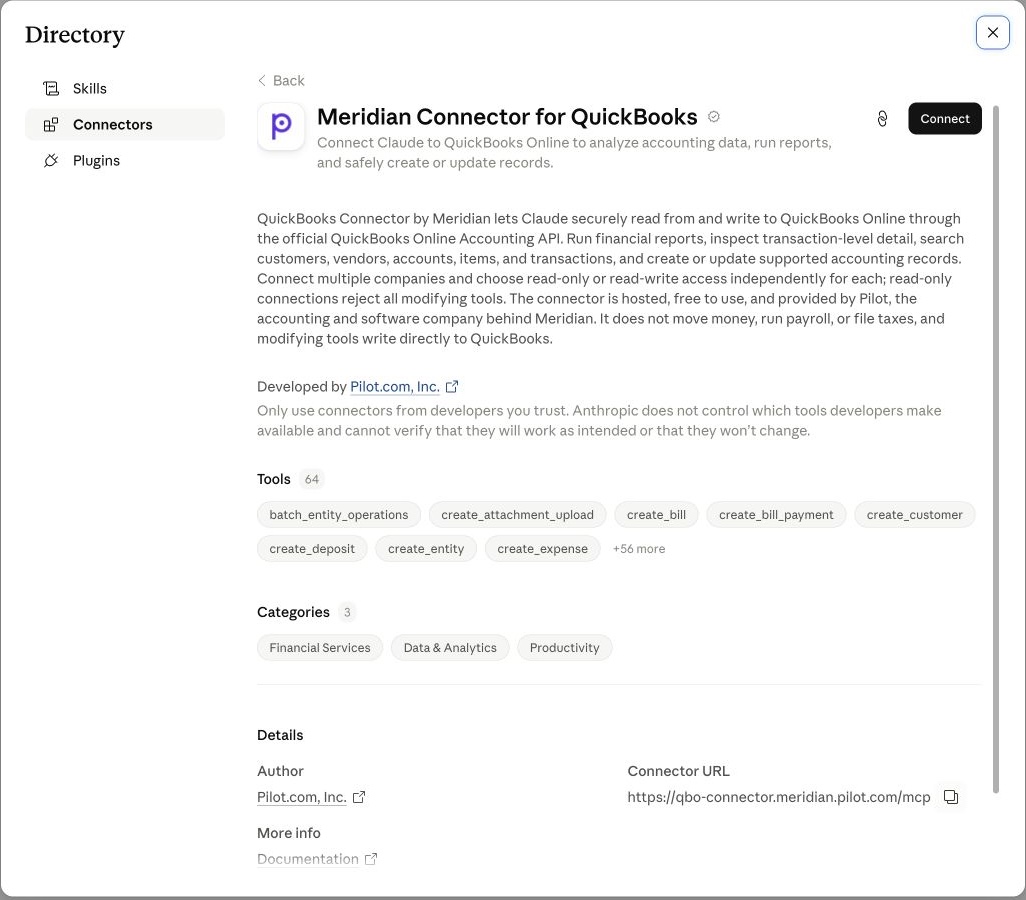
- Open the directory listing above. Confirm the listing is Meridian Connector for QuickBooks, developed by Pilot.com, Inc.
- Select Connect. In the browser, review the QuickBooks companies you connected and allow access.
- Start a new chat. Select + → Connectors and turn on Meridian Connector for QuickBooks for the conversation.
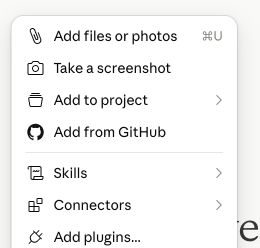
Claude on the web — open the + menu and choose Connectors.
When your agent shows Meridian Connector for QuickBooks as connected, return here.
Continue to verifyCan’t find the directory listing?
Add QuickBooks Connector by Meridian manually with its MCP server URL.
MCP server URL
https://qbo-connector.meridian.pilot.com/mcp- Open the manual setup link. Claude will prefill the connector name and server URL.
- Check the details. Leave both optional OAuth fields blank and keep Individual sign-in on.
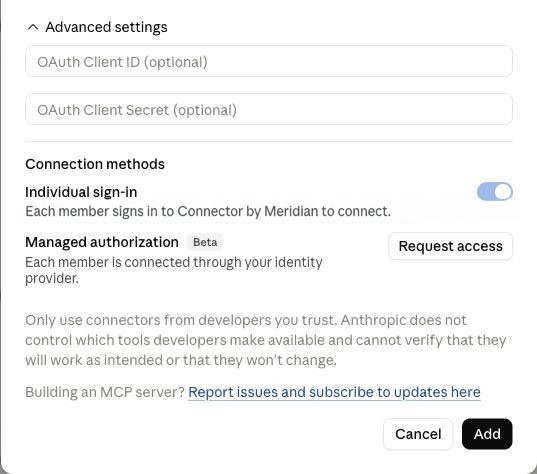
Leave the OAuth fields empty, keep Individual sign-in on, and select Add. - Select Add, then Connect. Review the requested access and allow the connection.
Using a Team or Enterprise workspace?
An Owner must add Meridian Connector for QuickBooks for the organization first. Each member then opens Connectors and selects Connect to authorize it for their account.
Need help? Contact support.